

Setting Up Your Monday.com Outlook Integration
If you want to synchronize your Outlook E-mail directly to Monday.com’s workflows, you might have a couple of hurdles to overcome prior to achieving your goal.
That’s because Outlook integrations are notoriously finicky. And the way that it integrates with Monday.com is through their recipe based automation system, which might be new to some folks. We can’t make these things too easy, right?
That’s why we’re going to go over the prerequisites, and assuming you meet or can achieve all of those, we’ll move on to the steps you’ll need to take in order to make your Monday / Outlook integration a reality.
Note: Integration is not retroactive, and will only appear in future workflows that you create and use.
But before we jump into that, let’s talk about why you would want to do all of this in the first place.

Why Perform a Monday / Outlook Integration?
There are a lot of neat things that you can do if you manage to hook up your E-mail and Monday.com. Monday provides a number of pre-built recipes1. These recipes will look for a trigger, and upon seeing it, will automatically perform the corresponding action.
For example, let’s say you wanted to turn your E-mail into an actionable item. The recipe would read something like this:
When an email is received, create an item in a group.
It can also work in reverse, with an action on Monday.com triggering the sending of an E-mail. Using this recipe, for example:
When a new item is created, send an email to someone.
This kind of integration is also available with other major E-mail providers, though the recipes might not be exactly the same, depending on their APIs.
The sections in bold can be configured on a case by case basis. You’ll be prompted to define exactly what you want to happen as you go through the recipe selection process. This is just one type of powerful automation that Monday has to offer2.
To answer the original question, performing a Monday.com Outlook integration can be a powerful tool that combines your project management platform with your day-to-day communications platform. In many situations, this can be extremely useful.
Prerequisites for a Monday.com Outlook Integration
The first thing to note is that you will need a Microsoft 365 Business Premium subscription in order to perform a Monday / Outlook integration. That’s because the Business Premium features include the streamlined booking options3 that Monday makes use of in order to fully integrate.
You also need to be using a Microsoft Online Cloud account, not an on-premises Exchange server that’s simply synched up to the Cloud. That’s because the feature sets and authentication methods differ between the two4.
Your E-mail domain cannot be hosted through a third party, even if it’s federated, because it won’t show up as a valid Outlook account as far as Monday’s API is concerned. If the E-mail provider icon listed in your Account Preferences for Monday.com is not a Microsoft Outlook icon, you’re out of luck.
Assuming all of those things are fine, you’re ready to start the process!
Performing a Monday.com Outlook Integration
You can create a new integration by logging into Monday.com and clicking the Integration button on the top navigation bar.
A list of possible integrations will come up, including the Monday / Outlook integration. Select that one.
Various recipes will appear, giving you options for how you would like to integrate the platforms. Simply select the one that you prefer and define the parts in bold using the pulldown menus and fields provided.
When you’re finished setting it up, the script for the new recipe will automatically send an authorization request5 and JWT token to Outlook, which will kick off the next part of the process.
Click ‘Connect’. You’ll be asked if you wish to grant the required permissions to Monday.com from Microsoft. The permission request screen will look something like this:
If you wish to continue with the integration after reviewing the permission request form, press ‘Accept’. If all goes well, that will be it! Your Monday.com Outlook integration is complete.
Can I Use the Monday / Outlook Integration to Send E-mails to Multiple Recipients?
Absolutely. When you’re defining the bolded options of your recipe, you have a lot of options to pick from. For example, this is the menu that you get when you’re trying to define the ‘email’ part of a recipe:
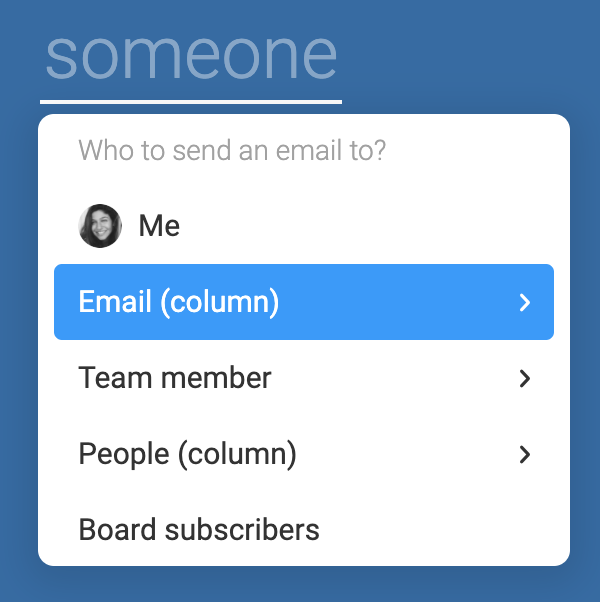
By selecting ‘Email (column)’, you’ll be able to enter multiple addresses, separated by semicolons (;). This is similar to the input of an Email Column inserted into a workflow6.
Just select the ‘Text’ option.
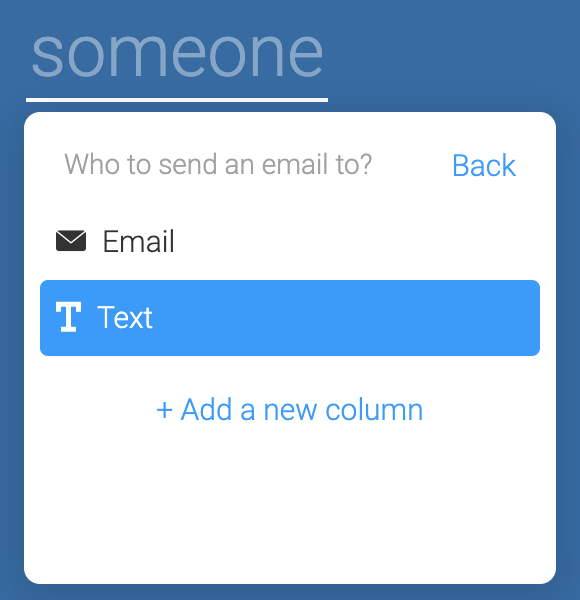
Then enter a text string of E-mail addresses separated by semicolons, like this:
ExampleOne@gmail.com ; ExampleTwo@outlook.com ; ExampleThree@firefox.com
These will all be added to the ‘To:’ field of the generated E-mail.
A Useful Example of Monday.com Outlook Integration
Let’s say that your particular project includes stakeholder engagement plans. You’ve agreed to inform certain key stakeholders every time certain milestones have been achieved.
That’s a great idea… why not automate it?
You can do this by leveraging one of the most useful recipes in the book:
When status changes to something, send an email to someone.
You can use this to ‘watch’ the status of critical milestones. When they’re marked as complete, you can automatically have Monday fire off an E-mail to that key list of stakeholders, using the multiple recipient method outlined above.
The status change recipe can also be used to transition between phases of customer interaction. Let’s say your project involves both presales and sales. When the presales team changes the status of the customer’s interaction to complete, the recipe can automatically send a notification to the sales team with all of the relevant information, and all of the notes from presales.
Want to Learn More?
If you’re interested in getting more examples of how to leverage Monday.com Outlook integration, or you were wondering about the myriad of ways that you can apply such an integration to your project plan, contact us for a free consultation. We’ll be happy to go over your project management options, and help you to choose the integrations that are right for your business.
Notes
- https://www.youtube.com/watch?v=sFO0dveug2s ↩
- https://support.monday.com/hc/en-us/articles/360001222900-monday-com-Automations ↩
- https://www.microsoft.com/en-gb/microsoft-365/business/microsoft-365-business-premium ↩
- https://www.msp360.com/resources/blog/exchange-online-vs-exchange-on-premises/ ↩
- https://developer.monday.com/apps/docs/integration-authorization ↩
- https://support.monday.com/hc/en-us/articles/360002155560-The-Email-Column ↩


